



 Solution
 Support Center
 About Us
 Contact
How to Bypass Windows 7 Password to Regain Access Fast [Step-by-Step]
 Penny Warren Published on July 08, 2026Windows Password3-min reading
Key Takeaways:
- If you were cautious enough to prepare a reset disk, good job: you only need to plug it in.
- Reset your password using imyPass Windows Password Reset – simple and fast.
- Enter Command Prompt to change your password, if you don't mind a little coding.
- Create a New Admin to access the PC without a password: it works, but it's a hassle.
Time flies. It's been 6 years since Windows 7's end of life. Maybe you've moved on to a new OS, but when you take a look at your old PC you are locked out by a long-lost password. Or maybe you are still with Windows 7, but after logging out you can't recall the password to get back in. It's okay, it happens. You still have a chance to enter your computer. There are 4 ways to bypass Windows 7 password, and I will introduce them from "easy for a 4-year-old" to "okay but this is technical".

In this article:
- Method 1. Use a Password Reset Disk (If You Have One)
- Method 2. imyPass Windows Password Reset (Easy)
- Method 3. Safe Mode with Command Prompt (Moderate)
- Method 4. Create a New Admin with Sticky Keys (the Hard Way)
- Prevent This from Happening Again: Prepare a Reset Disk
- FAQs About Bypassing Windows 7 Password
Method 1. Use a Password Reset Disk (If You Have One)
You already have a password reset disk? Perfect! This makes it a lot easier for you to regain access to the locked PC.
While you are at the login screen, plug the reset disk into the computer.
Type any wrong password and press Enter. Windows will inform you that it is incorrect. Now click Reset Password under the password box.
The Password Reset Wizard starts. Choose your reset disk from the list, and click Next.
Now you can type a new, strong password, confirm it, and create a password hint. When you're done, click Next.
Click Finish, and go back to the login screen to sign in with your new password.
Easy, isn't it? And if you didn't create a reset disk in advance, it's all right. Other methods don't need a prepared disk. Let's see.
Method 2. imyPass Windows Password Reset (Easy)
Easy to use, perfect for beginners, and works fast: that is exactly what imyPass Windows Password Reset does. This program is designed to help you get around your Windows 7 password without losing any data. It supports a wide range of desktops and laptops, including Dell, HP, IBM, Sony, Samsung, Gateway, Lenovo, ASUS, Acer, and Toshiba. A reliable choice for anyone locked out.
To use imyPass, you'll need a USB flash drive, and an accessible computer to run this program. It will turn your drive into a reset disk in no time.
On an accessible computer, download and install imyPass. Launch the software.
Plug your drive into the computer, then select the drive from the list, and click Burn USB. Wait until it finishes, then safely remove the media. Now you have a password reset disk at hand.

Insert this newly created reset disk into your locked computer. Restart the computer, and press F12 or ESC to open the Boot menu. Choose the correct bootable media type and press Enter.

The program window shows up. Now, select your operating system, Windows 7, and choose the user account for which you lost your password.

Hit Reset Password and confirm by clicking Yes. Then you can enter a new password, retype to confirm, and click OK to finish the whole process. The program will apply the new password immediately.

Close the program, remove the USB drive, and restart the PC. You can now sign in with your new password safely.
Method 3. Safe Mode with Command Prompt (Moderate)
In this way, you don't even need a physical unlocker – just your locked Windows 7, that's all. But you'll have to work with some command lines. It's not as hard as you may imagine, though. Let me break it down for you.
Restart your locked PC completely. As soon as it starts (right after the BIOS screen or manufacturer logo appears), tap F8 to open Advanced Boot Options.
Tapping F8 didn't work? Two main reasons. One, Windows failed to detect the key – try pressing F8 repeatedly until Advanced Boot Options shows up. Or two, your device model's shortcut is not F8 – try F12, F5, or ESC instead, which are common keys if F8 doesn't work.
On Advanced Boot Options, select Safe Mode with Command Prompt, and press Enter. Then wait for it to complete loading.
At the Command Prompt, type this command:
net user
Then press Enter. This command shows the existing account for you.
Now type a command like this:
net user administrator 123456
The "name" part is your account name, and the number part is the new password you want to set. Press Enter.
Now type:
shutdown -r
and press Enter, so you restart the computer. You can now log in with the new password you have just set.

Method 4. Create a New Admin with Sticky Keys (For Advanced Users)
This method gives you full control without changing the old user. It helps keep encrypted files safe and avoids risky edits. This is going to be technical – keep up!
Insert a Windows 7 install USB, restart, and boot from that media; on the setup screen, choose Repair your computer (or press Shift + F10), then open Command Prompt.
In Command Prompt, go to the system folder (for example: C: then cd windowssystem32) so you can work with system files.
Back up the sticky keys original file, and replace it with cmd so you can open Command Prompt from the login screen. For example, rename sethc.exe to sethc.exe.bak and copy cmd.exe to sethc.exe.
Type exit and reboot normally to the login screen. Press Shift five times to open Command Prompt, then run net user NewUserName /add and net localgroup administrators NewUserName /add to create a new admin.
Sign in with the new admin account. You can reset or remove the old account password or fix settings as needed. After you finish, restore the original sethc.exe from the backup.

Prevent This from Happening Again: Prepare a Reset Disk
Preparing a reset disk in advance will save you a lot of trouble in case you lose your Windows 7 password. To do this, we need a USB flash drive. Let's get on with it.
Plug in your USB drive.
Click Start, then type create a password reset disk in the search bar.
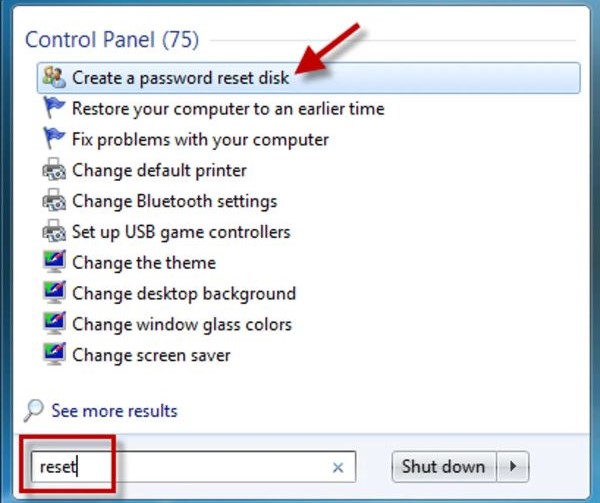
Click on Create a password reset disk from the left-hand menu. When the Forgotten Password Wizard appears, click Next.
Select the USB drive you have plugged in, then click Next.
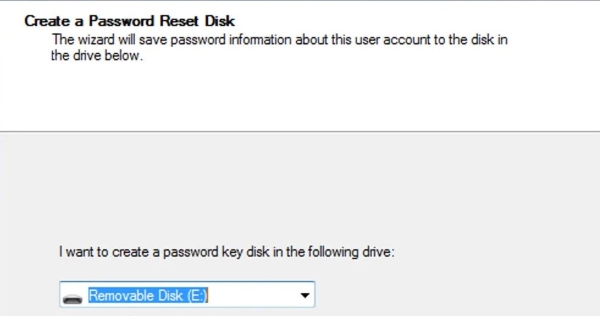
Type the current password for your Windows 7 local user account in the provided field. Click Next.
Wait for the progress bar to reach 100%, click Next, and then Finish. The reset disk has now been successfully created. Safely remove your USB drive and keep it in a secure location.
FAQs.
-
Is bypassing a Windows 7 password legal?
Yes, it is legal if you are resetting the password on your own computer or a device you are permitted to access. But it is illegal to use these methods on someone else’s device without permission.
-
How to bypass Windows 7 Professional password?
The methods above work on all Windows 7 editions, Professional included. If you want an easy and quick reset, imyPass is the best for you. By the way, bypassing passcodes on Windows 8 and later is a bit different: imyPass works well, but the other methods need to change.
-
Will I lose my data?
In most cases, no. The methods I introduced reset passwords without deleting any files. Still, backing up important data if you can is highly recommended to prevent accidental data loss.
-
Can I reset my Microsoft password using these methods?
No, it's not the same thing. These methods work for local user accounts, not for resetting Microsoft accounts.
Conclusion
We have provided 4 methods to help you get back into your computer. Among them, imyPass Windows Password Reset stands out. It is super easy to use, even for beginners. You can follow the steps and 100% accomplish your goal. No complicated tricks, just simple steps to bypass the password on Windows 7 and get access to your computer again.
Penny focuses on GPS troubleshooting and Windows optimization. She formerly worked as a technical support engineer, helping clients solve location-based and system issues efficiently. Backed by IT support experience, she provides practical solutions that really work. In her free time, she likes hiking and geocaching, testing GPS tech in the real world.
Hot Solutions
-
Windows Password
-
Windows Tips
-
Fix Windows
-
Password Tips


